


An Apple Watch that won’t charge can disrupt workouts, notifications, and daily health tracking. The good news? In most cases, the problem isn’t serious and can be fixed in just a few minutes.
It’s also worth noting that if your Apple Watch is completely out of power, it may not show any signs of charging right away. According to Apple’s official support, it can take up to 30 minutes for the charging icon to appear.
In this guide, we’ll walk you through why your Apple Watch may not be charging, how to tell if it’s actually charging, and the most effective solutions to get it powered up again.
Why Is My Apple Watch Not Charging?

- Dirty charging contacts: Sweat, lotion, or dust can build up on the back of the watch or the charger, creating a thin film that blocks the inductive power flow.
- Faulty or worn charging cable: Cables that are frequently bent or traveled with, such as a charger phone cable, can develop internal breaks. If the wiring is compromised, the watch won't receive a steady current.
- Misalignment with the charger: Even with magnets, a stiff watch band or an uneven surface can slightly lift the watch, breaking the connection required for wireless charging.
- Overheating or temperature issues: If the watch or environment is too hot, watchOS will automatically pause charging to protect the battery from permanent thermal damage.
- Power source problems: Plugging into a low-wattage USB port (like on an older laptop) or using a faulty wall adapter often results in the watch receiving insufficient power, which can affect how well the wireless charging works and prevent it from charging properly.
- Software glitches: Occasionally, a bug in watchOS prevents the "charging handshake" from occurring, requiring a simple software refresh to fix.
Before heading to a repair shop, try the troubleshooting steps above.
How to Tell if Your Apple Watch Is Not Charging

Before diving into fixes, you need to confirm that there is indeed a power failure. Look for these three red flags:
No Charging Icon
When you place your watch on the charger, a small lightning bolt icon should appear on the screen (usually green, or red if the battery is very low). If the screen remains blank or the icon doesn't appear, power isn't flowing.
Battery Level Not Increasing
Sometimes the watch shows the charging icon, but the percentage stays stagnant for hours. This often indicates that the power source is too weak or the watch is consuming energy as fast as it’s receiving it.
Charging Stops Suddenly
If your watch reaches 50% or 80% and then stops charging, it may be caused by heat management or a feature called Optimized Battery Charging, both designed to protect the battery’s long-term health. For those looking for wireless charging battery damage facts, this behavior is usually normal and helps reduce long-term wear on the battery.
Heat management pauses charging if the device gets too warm, while Optimized Battery Charging delays the final 20% based on your charging routine. If the watch feels warm, it's likely heat-related; if not, it's probably Optimized Battery Charging working to extend battery life.
How to Fix Apple Watch Charging Problems
Once you’ve figured out that your Apple Watch isn’t charging, it’s time to move on to the fixes. The good news is that most charging issues come from simple causes and can be resolved quickly with a few easy steps.
Reposition the Watch on the Charger
Apple Watch uses magnetic charging, so even a slight misalignment on the wireless charger can prevent charging. Gently adjust the watch until it snaps securely into place.
Clean the Charger and Charging Area
Use a soft, dry cloth to wipe the back of the watch and the charging puck. Sweat, dust, or residue can interfere with charging.
Try a Different Charger
If charging remains inconsistent, the issue may be related to the charger itself. Faulty cables, worn connectors, or unstable power output can all prevent the Apple Watch from charging properly. Testing with a different charger is one of the fastest ways to rule this out.
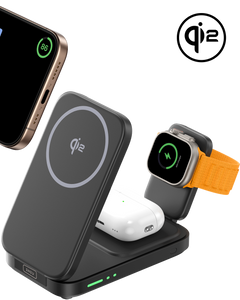
You can try another Apple Watch compatible wireless charger, such as a the INIU SnapGo W31-E1 3-in-1 Magnetic Foldable Wireless Charger or the INIU SnapGo P81-E1 Power Bank with Apple Watch support, to see whether the watch responds normally. If the watch begins charging with a different charger, the original one may need to be replaced.

Restart or Force Restart the Apple Watch
If your charger and connections look fine but charging still doesn’t work as expected, the issue may be software-related. A quick restart can often reset minor glitches that interfere with charging.
Restart: Press and hold the side button, slide to power off, then turn it back on.
Force Restart: Hold both the side button and the Digital Crown for 10 seconds until the Apple logo appears.
This can fix many temporary software-related charging issues.
Update watchOS
Outdated software can cause charging bugs. Open the Apple Watch app on your iPhone and check for the latest watchOS update.
When to Seek Professional Repair or Replacement
If none of the above solutions work, the issue may be more serious. Consider professional repair if:
- The battery health is significantly degraded, causing fast drain or extremely slow charging.
- The charging hardware is damaged, such as internal charging components that prevent consistent power delivery.
- The watch has been exposed to water or physical impact, which can lead to internal damage even if the watch still turns on.
In these cases, contacting Apple Support or visiting an authorized service provider is your best option.
Tips to Avoid Apple Watch Charging Problems
Building a few good habits can help prevent charging issues and keep your Apple Watch working smoothly over time.
Keep the Charging Contacts Clean and Dry
Dry your watch after workouts or handwashing before placing it on the charger, as moisture and residue can interfere with charging.
Avoid Charging in Extreme Temperatures
Very hot or cold environments may cause charging to slow or pause to protect the battery.
Don’t Let the Battery Fully Drain Too Often
Try to recharge around 20% instead of letting the battery hit 0%, which can affect long-term battery health.
Update watchOS Regularly
Updates often include battery and charging improvements, so staying current helps avoid software-related issues.
FAQ
What Is the Average Lifespan of an Apple Watch?
An Apple Watch typically lasts 3 to 5 years, with many users getting 4 to 6 years of use with proper care. You can generally expect reliable performance for several years before the battery begins to struggle or the device can no longer support the latest watchOS.
How Much Does It Cost to Replace an Apple Watch Battery?
An out-of-warranty Apple Watch battery replacement usually costs $99 for most models, or about $79 for older ones. If you have AppleCare+ and the battery capacity drops below 80%, the replacement is free.
Is There Another Way to Charge an Apple Watch?
You charge an Apple Watch using its magnetic charging puck, which snaps onto the back and connects to a power source via USB-C or USB-A. Multi-device pads or third-party chargers with built-in Apple Watch chargers also work, as long as they use the same magnetic alignment.
How Long Does a Completely Dead Apple Watch Take to Charge?
On newer models with fast charging, an Apple Watch reaches about 80% in around 30 minutes and 100% in 75–90 minutes. Older models or fully drained watches may take up to 30 minutes just to show the charging icon before turning on.
Why Is My Apple Watch Stuck on a Red Lightning Bolt?
A red lightning bolt on your Apple Watch means the battery is critically low. Place it on its official charger for at least 30 minutes, ensuring connections are clean. If it still won’t turn on, force restart by holding the side button and Digital Crown for 10 seconds until the Apple logo appears.
Conclusion
Most Apple Watch charging issues are caused by minor problems like dirty contacts, misalignment, or weak power sources. With a few quick checks and the right charger, you can usually fix the issue in minutes. Good charging habits also help extend your watch’s battery life and reliability.
